RxJava meets Data Binding III - Architecture & Example
19 Aug 2016There are several frontend architectures, MVP being popular in Android. However, MVVM fits very nicely with Data Binding. There are ways to take advantage of Data Binding in MVP with some modifications to the architecture. This part explains the advantages of MVVM and presents an example app.
MVVM
Data Binding Library provides an easy way to observe for changes from a source and update view properties.
MVVM architecture consists of three components:
- Model
- View
- ViewModel
The core idea is that ViewModel represents the state of the View and View observes for changes in ViewModel and updates itself. Thus, observing for changes is a key requirement for MVVM and data binding fulfills it. This makes MVVM an ideal candidate when working with Data Binding.
Key Features:
- ViewModels are unaware about Views, thus a single ViewModel can be shared between multiple Views
- Because ViewModel capture the state of Views, unit testing ViewModels implies testing UI content
- Android Bonus: Because ViewModels are plain Java objects, they can be tested on JVM (which is much faster)
- Because observation for changes is done by the Binding layer, boilerplate for adding callbacks gets removed
- A common binding mechanism allows creating abstract adapters for displaying a collection of views. For example: RecyclerView/ViewPager
MVP
In MVP architecture, the presenter gives commands to the View, usually in the form of function calls. Data binding provides a mechanism for View observing changes from a source. As a result, it would be required to build an intermediate entity which the View would observe and update. This entity would contain the methods which would be invoked by the Presenter. This entity is kind of like a ViewModel. The resulting architecture would be “MVPVM”. This is equivalent to extracting some logic from the ViewModel in MVVM into a Presenter, making the ViewModel a simple data class. This is similar to the architecture proposed by Uncle Bob in Clean Architecture.
In MVVM, to display a view, all we need is the ViewModel and the layoutId. Thus, to display a list of items, we would need a list of view models and a mapping from ViewModel -> layoutId.
In MVPVM, there will be an extra step of creating Presenters from ViewModels. Thus, MVVM tools can also be used for MVPVM. Hence, from the point of view of building a library, I have chosen MVVM as the base architecture.
As MVPVM could provide a better separation of concerns, it would be interesting to explore it later. However, until now, I haven’t felt the requirement to split the ViewModel into two parts. For most projects, MVVM should be enough.
Example App - Calculator
For an example, consider a simple calculator. It accepts two numeric inputs. 4 operators +-/* are displayed, which can be selected. When two inputs are entered and an operator is selected, result should get populated with the correct value.
Prerequisites:
- An Android project setup with a blank activity. Lets call this
CalculatorActivityand the layout asactivity_calculator - I have compiled the tools discussed in this series of posts into a library Android MVVM. I’ll assume that this has been included in the project as per the instructions in Getting Started.
Create Model
In this example, the model is straightforward. We have four operations, + - * /, lets write a method to implement these. Note that the / operation can fail when second number is 0. We’ll use null to denote an error. We’ll create an enum to indicate operations.
public class Calculator {

    public enum Operation {
        ADD, SUBTRACT, MULTIPLY, DIVIDE
    }

    @Nullable
    public Integer run(int a, int b, @NonNull Operation operation) {
        switch (operation) {
            case ADD:
                return a + b;
            case SUBTRACT:
                return a - b;
            case MULTIPLY:
                return a * b;
            case DIVIDE:
                if (b != 0) {
                    return a / b;
                } else {
                    return null;
                }
        }
        return null;
    }
}
Create CalculatorViewModel
Create a class CalculatorViewModel which will contain the presentation logic. Model should be invoked only if the inputs are valid integers and an operator has been selected. Also, if the result is null, we want to display ERROR in result.
Inputs
We have number1, number2 as String inputs. We have operator input of type Calculator.Operation.
public class CalculatorViewModel implements ViewModel {

    public final ObservableField<String> number1 = new ObservableField<>("");
    public final ObservableField<String> number2 = new ObservableField<>("");
    public final ObservableField<Calculator.Operation> operation = new ObservableField<>(null);
}
Deriving outputs
We have a result output of type String. As outputs are derived from inputs, they aren’t initialized as constants. Instead, we’ll use RxJava operators to construct an output field from the inputs. We’ll use the ReadOnlyField and FieldUtils classes discussed in Part 2.
public final ReadOnlyField<String> result;

public CalculatorViewModel() {
    final Calculator calculator = new Calculator();

    Observable<String> result = Observable.combineLatest(
            toObservable(number1), toObservable(number2), toObservable(operation),
            new Func3<String, String, Calculator.Operation, String>() {
                @Override
                public String call(String s1, String s2, Calculator.Operation operation) {
                    if (operation == null) { return ""; }
                    try {
                        int n1 = Integer.parseInt(s1);
                        int n2 = Integer.parseInt(s2);

                        Integer result = calculator.run(n1, n2, operation);
                        return (result != null) ? result.toString() : "ERROR";

                    } catch (NumberFormatException e) {
                        return "";
                    }
                }
            });
    this.result = ReadOnlyField.create(result);
}
This is the most critical logic in the ViewModel and note the minimalism of code here. The binding layer takes care of observation/subscription.
Populate View
We need the following views bound to the correct ViewModel inputs & outputs:
EditTextfor number 1EditTextfor number 2- 4x
RadioButtons for each operator wrapped in aRadioGroup TextViewfor result
Add these in activity_calculator.xml wrapped in a LinearLayout wrapped in <layout> tag as per Data Binding requirements.
<?xml version="1.0" encoding="utf-8"?>
<layout xmlns:android="http://schemas.android.com/apk/res/android"
    xmlns:tools="http://schemas.android.com/tools">

    <data>

        <variable
            name="vm"
            type="com.manaschaudhari.android_mvvm.sample.calculator_example.CalculatorViewModel" />
    </data>

    <LinearLayout
        android:layout_width="match_parent"
        android:layout_height="match_parent"
        android:orientation="vertical"
        tools:context="com.manaschaudhari.android_mvvm.sample.calculator_example.CalculatorActivity">

        <EditText
            android:layout_width="wrap_content"
            android:layout_height="wrap_content"
            android:hint="Number 1"
            android:inputType="number"
            android:text="@={vm.number1}" />

        <EditText
            android:layout_width="wrap_content"
            android:layout_height="wrap_content"
            android:hint="Number 2"
            android:inputType="number"
            android:text="@={vm.number2}" />

        <RadioGroup
            android:layout_width="wrap_content"
            android:layout_height="wrap_content">

            <RadioButton
                android:layout_width="wrap_content"
                android:layout_height="wrap_content"
                android:text="+" />

            <RadioButton
                android:layout_width="wrap_content"
                android:layout_height="wrap_content"
                android:text="-" />

            <RadioButton
                android:layout_width="wrap_content"
                android:layout_height="wrap_content"
                android:text="*" />

            <RadioButton
                android:layout_width="wrap_content"
                android:layout_height="wrap_content"
                android:text="/" />
        </RadioGroup>

        <TextView
            android:layout_width="wrap_content"
            android:layout_height="wrap_content"
            android:text="@{vm.result}" />
    </LinearLayout>

</layout>
Note that for EditText bindings, we used android:text="@={vm.number1}". The = after @ makes this a Two Way binding. Thus, the vm.number1 gets updated when view’s text property gets updated. Binding the RadioGroup selection is slightly complex. We’ll implement it soon.
Setup Activity
In order to setup this view, we need to create an instance of CalculatorViewModel and set the vm Data Binding variable of the layout. The library provides a convenient class MvvmActivity to make this easy.
public class CalculatorActivity extends MvvmActivity {

    @NonNull
    @Override
    public ViewModel createViewModel() {
        return new CalculatorViewModel();
    }

    @Override
    public int getLayoutId() {
        return R.layout.activity_calculator;
    }
}
Note about Library Setup
The above minimal setup is possible because of the initialization done in Getting Started.
public class ExampleApplication extends Application {
    @Override
    public void onCreate() {
        super.onCreate();
        BindingUtils.setDefaultBinder(new ViewModelBinder() {
            @Override
            public void bind(ViewDataBinding viewDataBinding, ViewModel viewModel) {
                viewDataBinding.setVariable(BR.vm, viewModel);
            }
        });
    }
}
This tells the library that we use vm variable in all our layouts.
Test it out
If we run the app now, result will always be blank as we haven’t completed the operator binding and the default value is null. For the sake of testing lets change the default value to ADD and rerun.
public final ObservableField<Calculator.Operation> operation =
    new ObservableField<>(Calculator.Operation.ADD);
You should see the result value change as you update the inputs.
RadioGroup Binding
Two Way binding is supported for android:checkedButton attribute of RadioGroup. However, the type is int as RadioGroup provides the id of the selected view inside. We need a mechanism with converts int to Operation and back. This can be done with the help of InverseBindingAdapter and a BindingConversion. First, lets add ids to all the RadioButtons in activity_calculator.xml:
<RadioGroup
    android:layout_width="wrap_content"
    android:layout_height="wrap_content"
+   android:checkedButton="@={vm.operation}">

    <RadioButton
+       android:id="@+id/radio_add"
        android:layout_width="wrap_content"
        android:layout_height="wrap_content"
        android:text="+" />

    <RadioButton
+       android:id="@+id/radio_subtract"
        android:layout_width="wrap_content"
        android:layout_height="wrap_content"
        android:text="-" />

    <RadioButton
+       android:id="@+id/radio_multiply"
        android:layout_width="wrap_content"
        android:layout_height="wrap_content"
        android:text="*" />

    <RadioButton
+       android:id="@+id/radio_divide"
        android:layout_width="wrap_content"
        android:layout_height="wrap_content"
        android:text="/" />
</RadioGroup>
Create a class BindingAdapters.java to implement the conversion:
@SuppressWarnings("unused")
public class BindingAdapters {

    /*
      Ideally, a BindingConversion from int -> Operation should be enough. However, as of
      gradle plugin 2.1.1, BindingConversion isn't supported for InverseBindingAdapters
     */
    @InverseBindingAdapter(attribute = "android:checkedButton")
    public static Calculator.Operation getOperation(RadioGroup radioGroup) {
        return toOperation(radioGroup.getCheckedRadioButtonId());
    }

    @BindingConversion
    public static int toLayout(Calculator.Operation operation) {
        if (operation == null) {
            return -1;
        }
        switch (operation) {
            case ADD:
                return R.id.radio_add;
            case SUBTRACT:
                return R.id.radio_subtract;
            case MULTIPLY:
                return R.id.radio_multiply;
            case DIVIDE:
                return R.id.radio_divide;
            default:
                return -1;
        }
    }

    public static Calculator.Operation toOperation(int layoutId) {
        switch (layoutId) {
            case R.id.radio_add:
                return Calculator.Operation.ADD;
            case R.id.radio_subtract:
                return Calculator.Operation.SUBTRACT;
            case R.id.radio_multiply:
                return Calculator.Operation.MULTIPLY;
            case R.id.radio_divide:
                return Calculator.Operation.DIVIDE;
            default:
                return null;
        }
    }

}
This example of a custom adapter is specific to this view, hence, it cannot be used for a different scenario. But, we can write generic conversions for example
String <-> IntegerORString <-> Floatwhich can be reused throughout the app.
And that’s it.
Run the app, and it should work.
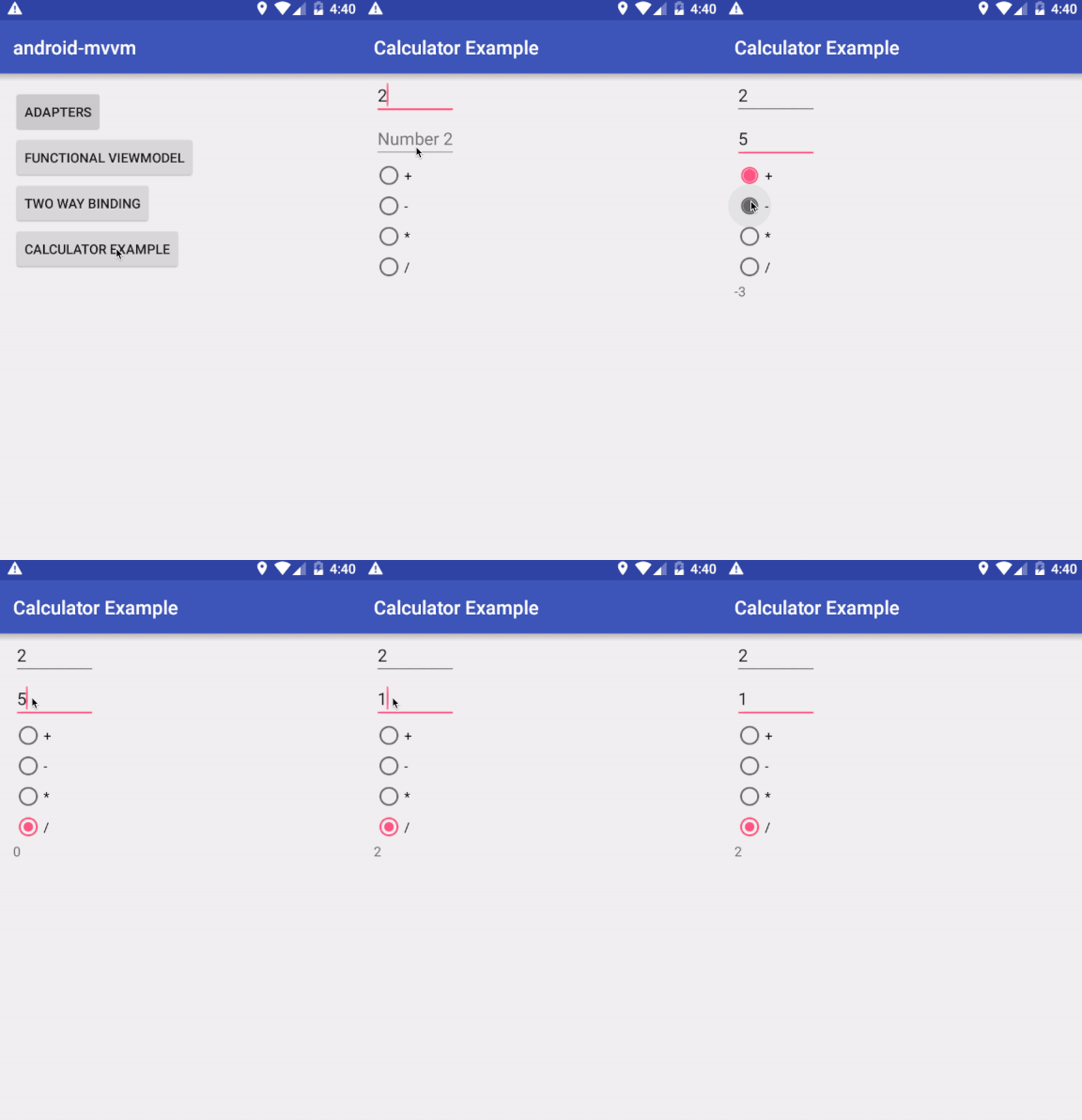
Source
This example is part of the Android MVVM library. The source can be found at: